 Mila Zora
"See how to redact a PDF the right way, with real examples of what goes wrong when redaction fails, plus a quick how-to."
How to Redact a PDF Safely and Permanently
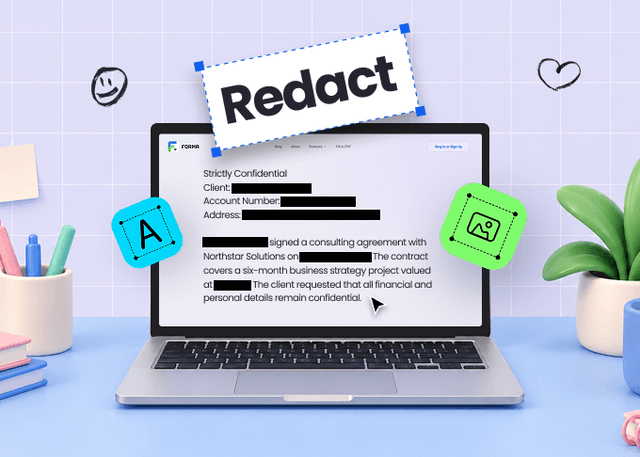
Redacting a PDF means permanently removing sensitive information from a document so it can’t be read or recovered from the file. It looks simple: a black box over a name, number, or paragraph. But that box isn’t the redaction. The redaction is what happens to the data underneath it.
If the hidden text can still be copied, searched, extracted, or otherwise recovered, the redaction didn’t work.
So here’s the question worth asking: do you know how to redact a PDF, or do you just know how to put a black box over text?
Why “Just Cover It Up” Isn’t Redaction
Redacting a PDF means permanently removing sensitive data, not just covering it up. Plenty of document tools let you drop a black rectangle over a word and call it a day. But the text underneath is still part of the file’s data, and a quick copy-paste, export, or even just changing the highlight color can bring it right back into view.
This isn’t hypothetical. In 2019, lawyers representing a high-profile political figure filed a court document with several sections blacked out. A reporter copied the “redacted” text into a new document, and the boxes vanished entirely, exposing information their client had been trying hard to keep buried. A similar mistake hit the European Commission in 2021: it published a vaccine supply contract with commercial terms blacked out, only for readers to discover that clickable bookmarks still pointed straight to the hidden sections, revealing pricing and delivery terms.
In both cases, the problem wasn’t that someone broke into a secure system. The sensitive information was still embedded in the document itself. That’s what makes improper digital redaction so easy to overlook—and so important to get right.
What Kinds of Documents Need Redacting
Court filings and government records get most of the attention, and for good reason—FOIA requests, public case files, and classified reports all involve stripping out names, case numbers, or sensitive details before release. But plenty of everyday paperwork carries the exact same risk, just on a smaller scale:
Leases and rental agreements. A landlord handing a lease over to a new property manager often needs to remove a previous tenant’s bank details or Social Security number first.
HR and internal policy documents. Company-wide policies or shared reports frequently need specific employee names stripped out before they’re distributed more broadly.
Contracts and templates. A small business reusing an old contract as a template usually needs the previous client’s actual figures removed before sending it to a new one.
Invoices and shared files. A freelancer forwarding an old invoice or project file might need to redact a client’s address or payment details before passing it along to someone new.
Medical and financial records. Insurance claims, billing summaries, and any document containing account numbers or health information typically need sensitive fields removed before they can be shared outside their original context.
Whatever the document, the underlying risk is the same: information that’s perfectly fine to keep on file internally can become a liability the moment it travels somewhere else.
How to Redact a PDF With Forma
If you want a straightforward way to redact sensitive information rather than just hiding it, Forma’s redact PDF tool handles the whole thing online in four simple steps.
Step 1: Upload your file. Drop in the PDF you need to clean up. Note that the maximum file size is 100 MB.
Step 2: Choose your redaction mode. Tap the “Redact” icon at the top and choose what you want to redact—text (for words, numbers, or sentences) or an area (for larger sections or images). You can also pick the color of the blocks that will replace the redacted content and add custom text on top if needed.
Step 3: Apply the redaction. Once everything’s marked, hit “Apply” to confirm the changes. This step is permanent, so double-check your selections first. If you need the unredacted version later, save a separate copy of the original.
Step 4: Download or share. Save the cleaned-up file to your device, or share it directly from there.
A Habit Worth Building
Knowing how to redact a PDF safely comes down to one simple rule: make sure the sensitive information is actually gone, not just hidden.
Before you share a redacted PDF, check the finished file and make sure the redacted text or images can’t be copied, searched, or recovered. To be sure, use a reliable tool like the dedicated redaction feature in Forma.
It only takes a few extra seconds, but it can prevent sensitive information from becoming public.