 andrey.matrashilo
"Learn how to turn photos, screenshots, and scanned documents into editable text in a few clicks"
How to Convert Image to Text (Zero Tech Skills Required)
Image-to-text conversion may sound intimidating, but it only takes a couple of clicks. Here’s a simple explanation of how it works and the three easiest ways to do it.
What Does Image to Text Conversion Mean?
It’s the process of extracting text from an image. Technically, it’s done using Optical Character Recognition (OCR), a technology that analyzes an image and recognizes characters and words within it. After extraction, you can copy, edit, search, translate, save, or share the text in any format you want.
Why Convert an Image to Text?
Retyping a shopping list isn’t a big deal. But retyping a four-page application form, a dozen presentation slides you captured during a business meeting, or your classmate’s lecture notes after missing a class is another story. Image-to-text conversion lets you skip the time-consuming part and get editable text right away.
Although if you want to save a few seconds on your shopping list too, why not?
How to Convert Image to Text
There are three ways to convert an image to text. The right method depends on what you need to do with the text.
Convert Image to TXT
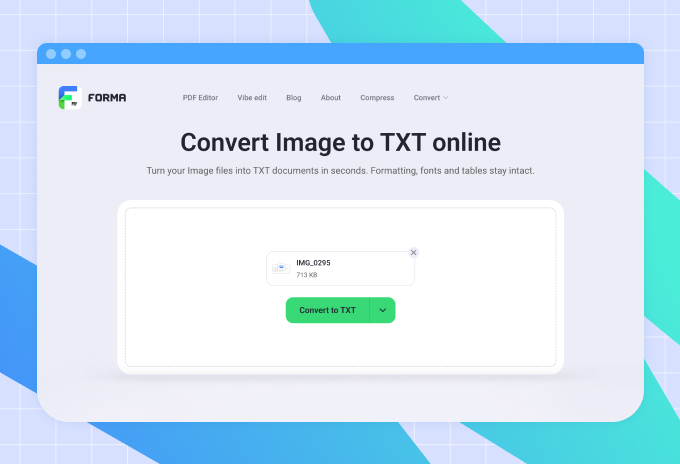
Converting an image to TXT is the best choice when formatting isn’t important. The result is a plain-text file that contains only the extracted text, without the original layout, fonts, tables, or other elements. It’s perfect for notes, transcripts, drafts, or any content you plan to edit, copy, or paste.
The quickest way to convert an image to TXT on any device is to use an online converter.
Convert Image to DOC
If you plan to keep editing the extracted text, converting an image to DOC is the better choice. Unlike TXT, DOC documents preserve paragraphs and basic formatting, making them easier to review, update, and share. They’re ideal for reports, letters, contracts, and other documents you’ll continue working with over time.
Just like with TXT, you can use an online converter to turn an image into a DOC file.
Recognize Text with a Mobile OCR Scanning App
A mobile scanning app with OCR is a great option if you regularly work with paper documents. Instead of taking photos with your phone and then looking for a separate tool to extract the text, you can scan and recognize everything in one app. Plus, you can do it anytime, anywhere.
The exact process varies from app to app, but it usually looks like this: capture a document, improve its quality if needed, and let the app recognize the text. Most scanning apps save the result as a searchable and editable PDF, keeping the original layout, fonts, and images.
There are plenty of OCR apps on the market. Here are some of the best:
- iScanner. Best overall OCR accuracy and layout preservation
- Adobe Scan. Delivers good recognition results, especially with high-quality original documents
- vFlat. A strong choice for extracting plain text, particularly from books and curved pages
Key Takeaways
You don’t need any technical knowledge to convert images into text. OCR tools can recognize text from photos, screenshots, and scanned documents in just a few clicks. The right option depends on what you need afterward:
- Use an online image-to-TXT converter for simple text extraction on any device
- Convert an image to DOC for documents you plan to edit
- Use a mobile OCR app for accurate text recognition if you work with documents regularly