 Alex Shun
"No toolbars. No manuals. No complicated editing. Learn how to update your PDFs by simply telling Vibe Edit PDF what you want to change."
How to Use Vibe Edit PDF: A Step-by-Step Tutorial
Forget about manually editing your documents with complicated software. Vibe Edit PDF lets you update your files by simply chatting with it. In this step-by-step tutorial, we’ll guide you through everything you need to know to get started and make the most of Vibe Edit PDF’s groundbreaking features.
What Is Vibe Edit PDF?
Vibe Edit PDF by Forma is a tool that takes your PDF management to the next level. Instead of manually editing your files as you would with traditional PDF editors, Vibe Edit PDF lets you edit your documents using natural-language instructions. You don’t need to dig through manuals, click through buttons to see what they actually do, navigate toolbars and dropdown menus, or type directly into the file yourself.
Instead, you can have a conversation. Tell Vibe Edit PDF what you want to change by typing a message, and it’ll update the document for you while preserving its original formatting. Everything from text boxes and images to tables and columns stays just the way it was.
The whole process takes three easy steps: upload a PDF, tell the tool what you’d like to change, and download the updated file. Everything is handled automatically.
How to Get Started
To use the Vibe Edit PDF web tool, all you need is an internet connection.
Go to the Vibe Edit PDF page and upload your document. You can either click Browse Files and select the file from your device or drag and drop it. The file size can’t exceed 50 MB. Once the upload is complete, you’re ready to proceed.
How to Vibe Edit PDF
After uploading your PDF, you can tell the tool what you’d like to change in your document. There are two ways to do it:
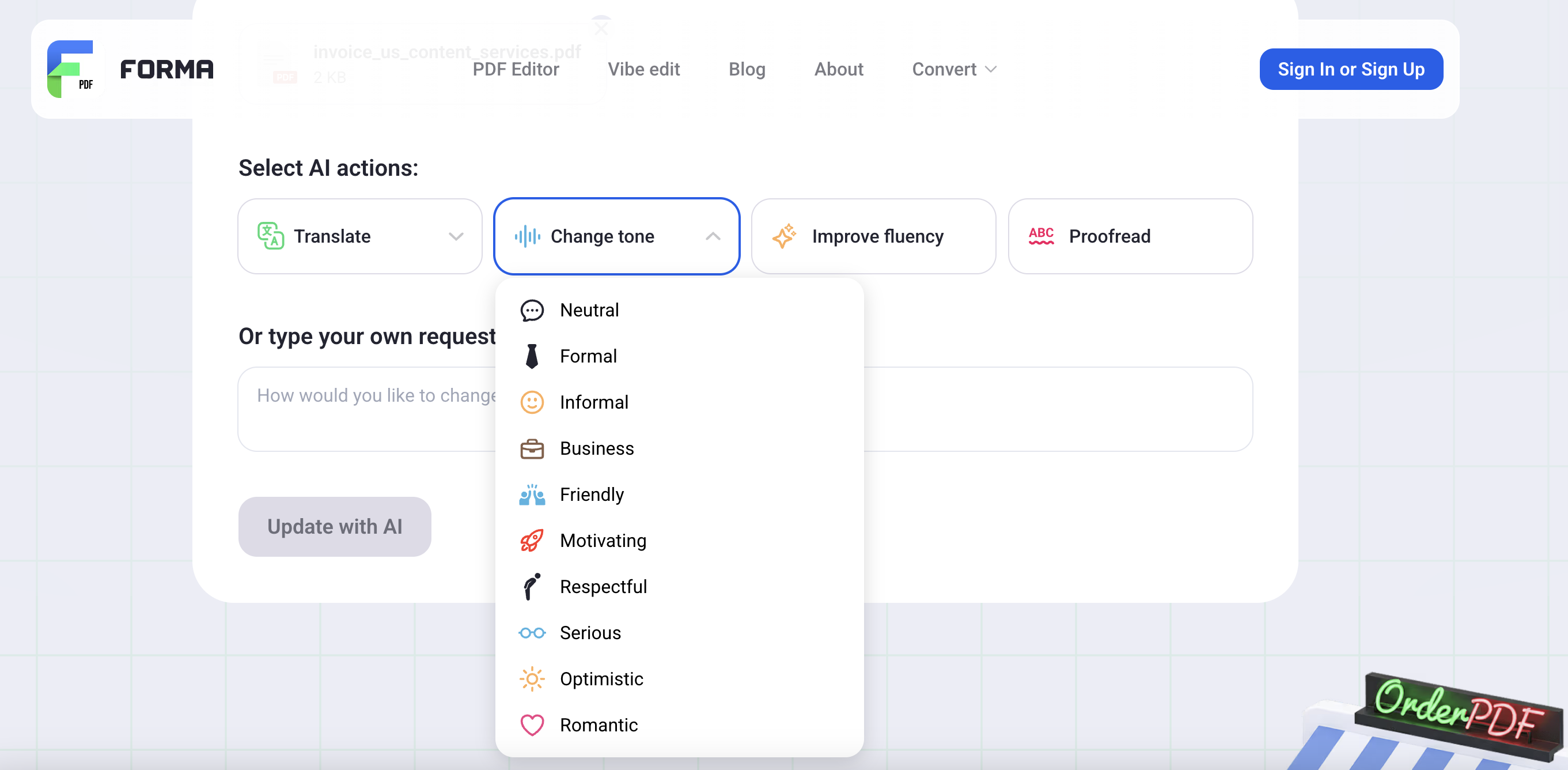
- By clicking one of the four default options: Translate, Change Tone, Polish as Native, or Proofread
- By typing your request in the text field
Option 1. Default requests
The Translate button lets you translate the whole document into 22 languages. Simply click or tap the button to select the desired language, whether it’s English, Dutch, Chinese, Indonesian, or another supported language. Your translated document will preserve the original layout, formatting, tables, columns, and images.
The Change Tone option adjusts how your document sounds. You can make it neutral, formal, informal, businesslike, friendly, motivational, respectful, serious, optimistic, or even romantic.
Polish as Native rewrites your text so it sounds like it was written by a native speaker. It removes literal translations, improves structure and grammar, and ensures your text fits the cultural context.
The Proofread option checks your document for grammatical, spelling, and punctuation mistakes and highlights them for you.
After you choose one of the options, click Process with AI to adjust your file.
Option 2. Custom requests
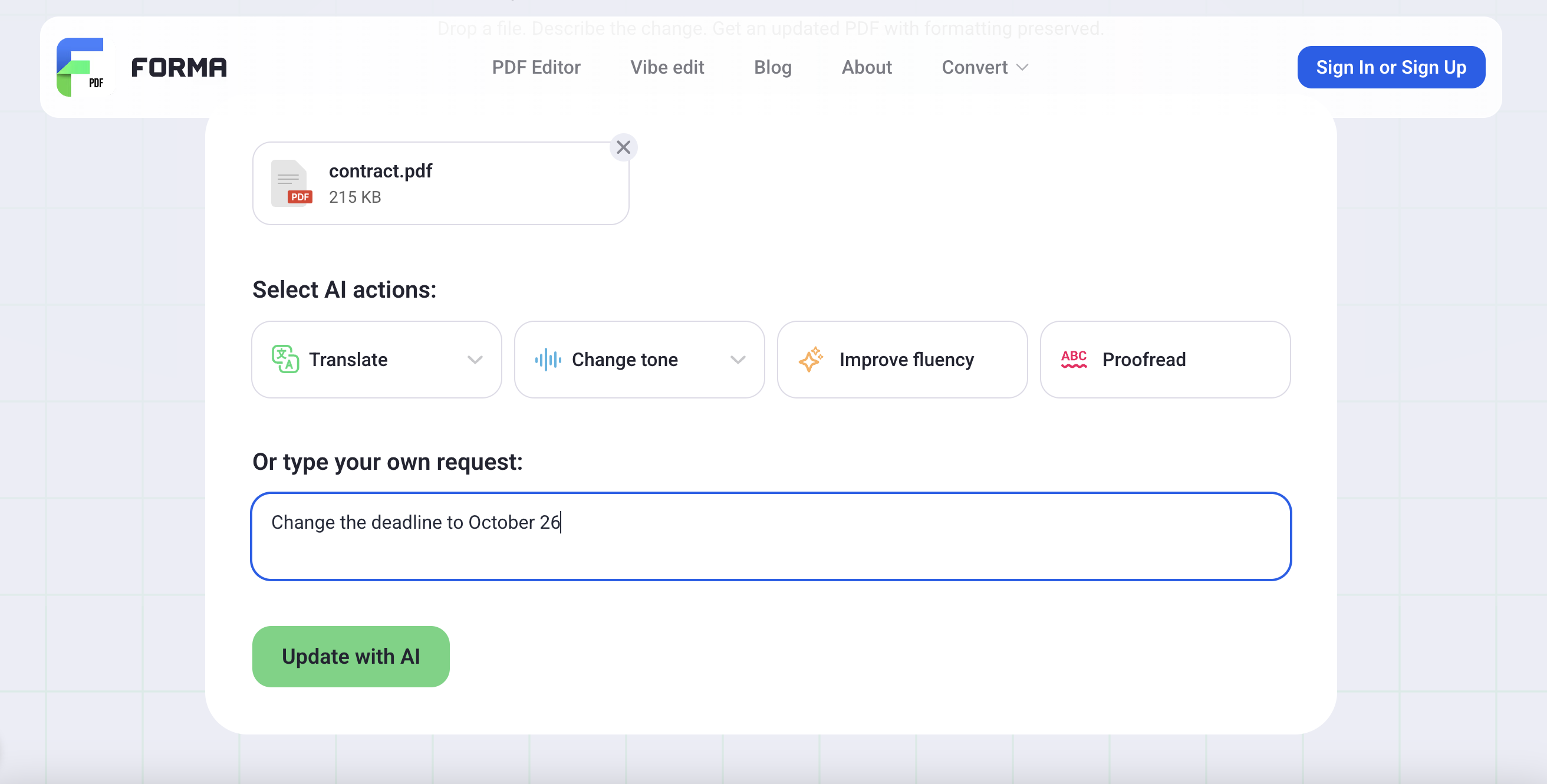
If none of the default options meet your needs, simply describe the changes you want in the text field by typing a message.
For instance, if you want to make your text a bit shorter, you can write “Make the text more concise.” Or if you need to quickly change an outdated deadline in your form, say “Change the deadline to October 26.”
With customized requests, you can quickly correct typos in your essay, translate a specific part of the text, summarize your speech into bullet points, generate a title for your document, and more. Just tell the tool what you want, and watch the magic happen.
When you’re done, click Process with AI to apply the changes.
How to Review and Download the Updated PDF
The final step is to review the edited file.
After you click the Process with AI button, you’ll be taken to a review screen showing your updated document. This screen is divided into two sections. On one side, the updated file is shown with all changes highlighted. On the other, you’ll find cards showing the original and updated content side by side. Each card corresponds to a specific section of the document.
If you decide not to apply a change, click Discard to revert that section to the original. If the update looks good, just leave it as it is.
When you are done checking the updates, select Download Edited PDF to save your updated document.
How to Use Vibe Edit PDF on a Smartphone
In addition to the web tool, you can also vibe edit your documents in Forma for iOS. If you’re away from your laptop and need to quickly fix a typo or add a few points before a meeting, you can edit your PDF with simple natural-language instructions right from your phone.
To do that:
- Download Forma from the App Store
- Tap Vibe Edit in the AI Assistant section on the main screen
- Type and send your request. You can also use a voice command to describe the changes you want. On iOS, you can request changes using either text or voice.
- Review the updated document to make sure everything looks the way you want
- Download your updated document