

How to Save a Webpage as a PDF: A Guide for Any Platform
Have you ever wished you had saved a webpage before your internet connection slowed down or went offline? URL links are easy and convenient to use and share, but sometimes we need to convert webpages into a different format so we can always have them at hand. In this guide, we’ll cover all the ways to save a webpage as a PDF, including a bonus: a universal method for any smartphone that takes the result to the next level—with a clean layout and the ability to keep your PDF as one seamless file, exactly as you see it while scrolling online.
1 When to Save a Webpage as a PDF
It’s not only about missing a page when the internet connection is lost. You might need to convert a webpage into a PDF to:
- Store important information on your device, such as a form, for instance.
- Print it out.
- Share a fixed copy.
- Study or review it, especially if you plan to work with it further: annotate, highlight, add your own comments, and more.
Situations like these might not come up every day, but when they do, it helps to be prepared and know how to fix any issues along the way.
2 What Are These Issues?
Modern devices come with built-in tools that allow you to quickly and conveniently create a PDF out of a webpage. However, there are two major drawbacks.
First, files converted this way often have an improper or even strange layout: image layers may overlap, content may be oddly distributed across various pages, and thick white margins may appear around the page image. If that’s the case, the result will look more like a screenshot on paper than a properly converted file.
Second, built-in tools can’t convert a webpage into a single, continuous PDF. Instead, they break the page into multiple pages (as if you were printing it), which also affects the outcome: breaks may appear right in the middle of images or text, splitting them into separate parts.
The good news is that there’s an option that can cope with all the above-mentioned issues. That tool is the Forma app.
Forma offers more than standard solutions. Its unique advantage is the ability to convert a webpage into a single, long PDF page—a feature that built-in tools can’t provide. When you choose this option, the app captures the entire webpage from top to bottom as one uninterrupted PDF. As a result, the file preserves the flow of the webpage exactly as you would see it while scrolling in a browser.
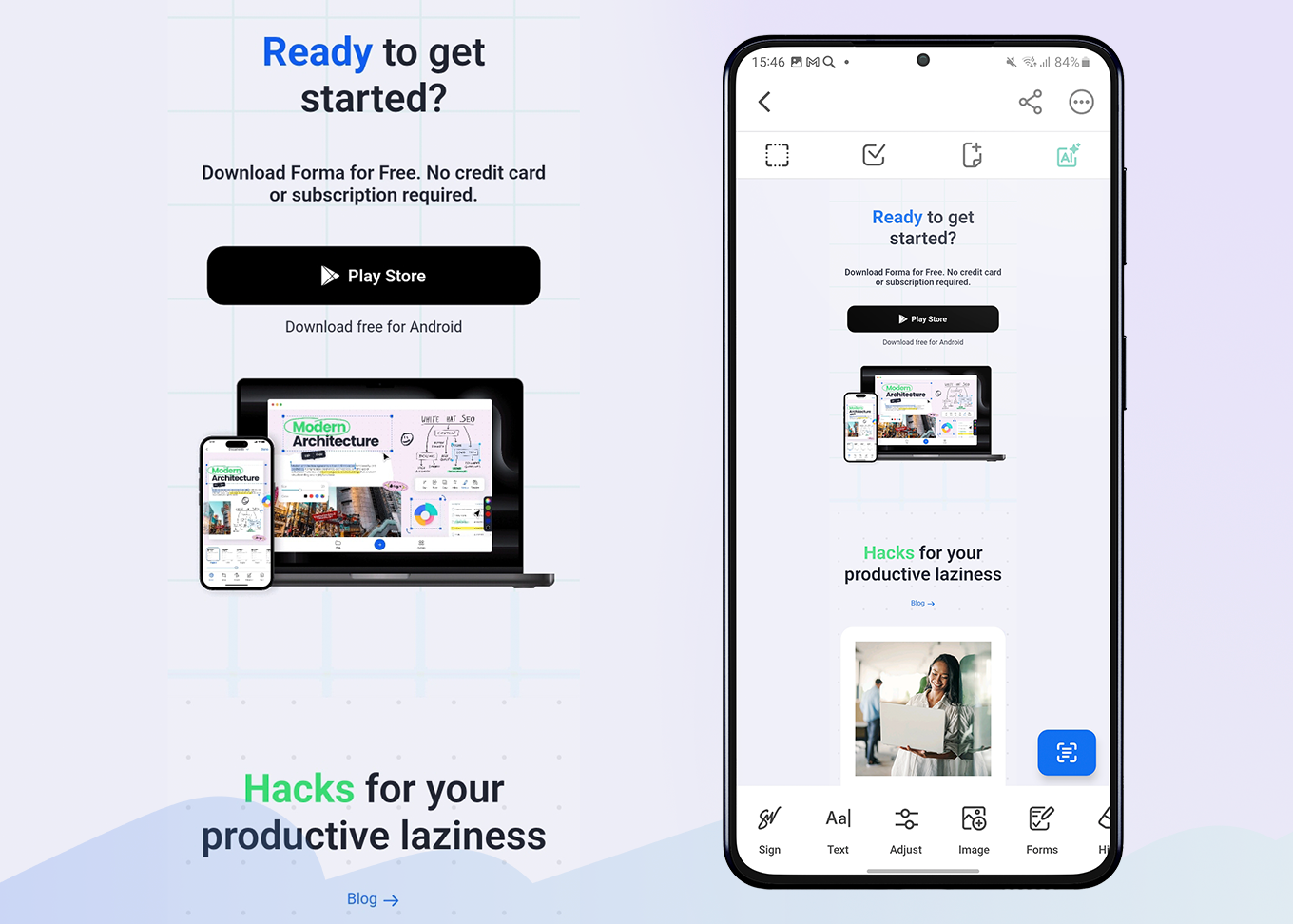
Apart from that, Forma is capable of solving practically any PDF-related task, including converting webpages, and is available on both iOS and Android. Compared to built-in tools, the only minor inconvenience is that you need to spend a minute or two installing it from the app store. In the long run, however, it can save you a significant amount of time.
3 How to Save a Webpage as a PDF with Forma
There are two ways you can do that:
- Straight from the app.
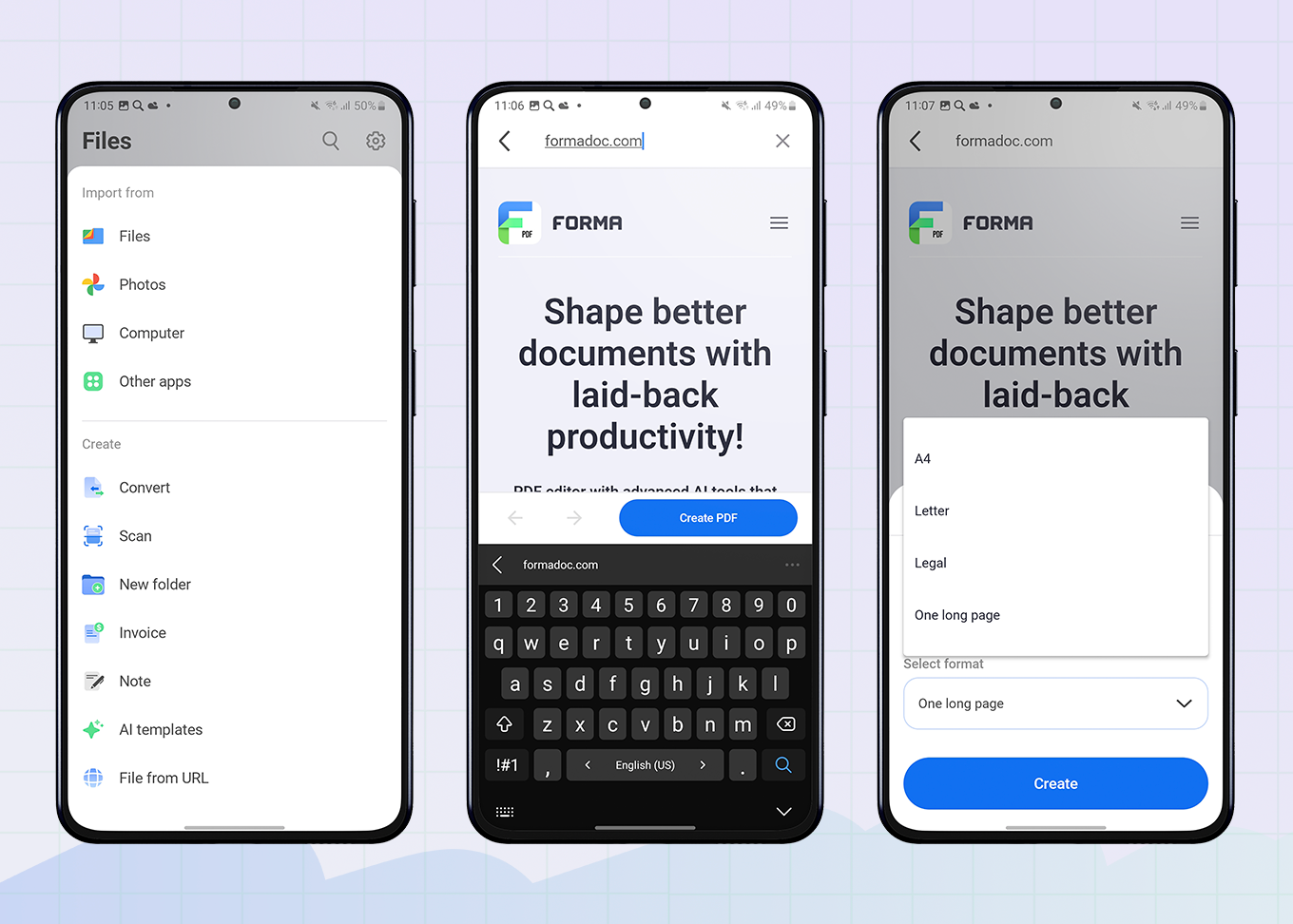
- Open the app and tap the Plus button.
- Tap File from URL.
- Type the name of the URL of the page you’d like to convert and tap Create PDF.
- Enter the name of the converted file and choose its format. If you need a single, continuous file, select the One Long Page option.
- Tap Create.
- From a browser.
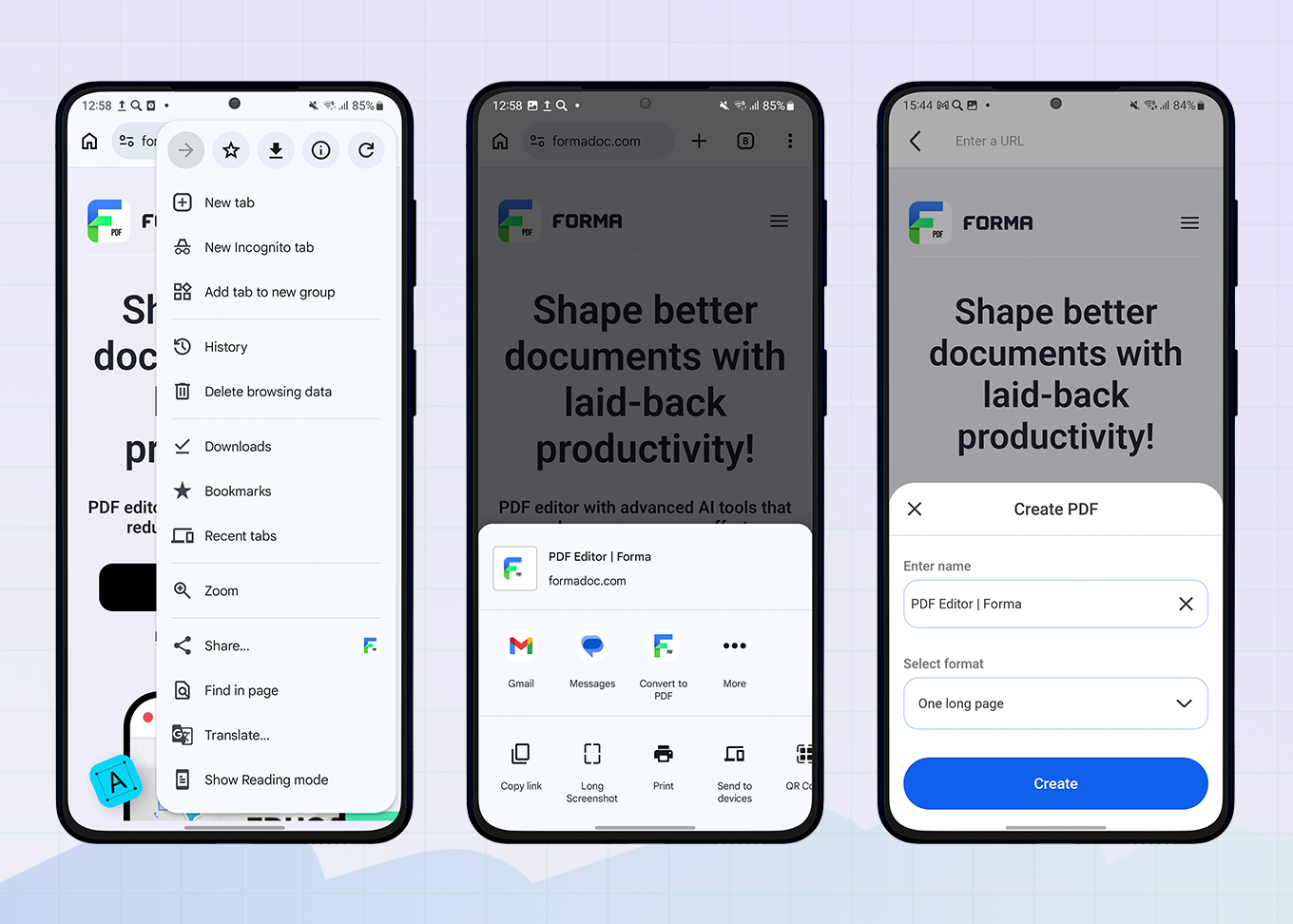
- Open the page you’d like to convert in a browser.
- Tap Share, then select Convert to PDF with Forma.
- Type the file’s name and select the format.
- Tap Create.
Whichever option you choose, you can then work and adjust your PDF however you like. You can add text, highlight or annotate important details, blur sensitive information, fill in forms, and even e-sign them. You can also use the app’s AI assistant to go beyond the saved content: to translate the page, summarize it, explain it in plain language, or perform other tasks by simply typing your request.
If the file needs to be shared, you can do so right from the app via email or a shared link (with an expiration date if needed).
4 How to Save a Webpage as a PDF on iOS
If there’s no need to turn a webpage into a single long PDF or if layout issues aren’t a concern, you can use the built-in options. On iPhones, there are two ways to do this, both using the Safari browser.
Option A
- Open the page you want to convert in Safari.
- Tap Share in the bottom center of the screen.
- Tap Options, select PDF in the Send As menu, and tap Done.
- Tap Save to Files to store the PDF on your device or in iCloud.
Option B
- Open the webpage in Safari.
- Tap Share—Print.
- Tap Share once again (in the top-right corner)
- Select Save to Files to send the converted webpage to your device.
5 How to Save a Webpage as a PDF on Android
On Android, you can save a webpage as a PDF using Google Chrome, which usually comes preinstalled:
- Open the webpage you want to convert in Google Chrome.
- Tap Settings (the three-dot menu) in the top-right corner and select Share.
- Tap Save as PDF in the printer selection menu.
- Tap the PDF button to choose the location to store the PDF.
This option has similar issues to the iOS method: formatting may be improper, layers may overlap, and font colors or other elements may not display correctly.
6 How to Save a Webpage as a PDF on macOS
Mac devices also come with preinstalled tools that allow you to turn almost any webpage into a PDF from your browser. Here’s how:
- Open the page in a browser.
- Right-click (or two-finger click) anywhere on the page and select Print.
- Choose Save as PDF in the Destination field.
- Click Save.
Unfortunately, even on computers, built-in tools don’t fix the issues we’ve described in the section about smartphones.
7 How to Save a Webpage as a PDF on Windows
The flow is very similar to macOS—with the help of the printing tool:
- Open the webpage in a browser.
- Press Ctrl+P to open the printing menu.
- Choose Print to PDF from the list of printers.
- Click Print.
8 Key Takeaways
Saving webpages as PDFs isn’t what you’ll do every day, but when you need to, the process can sometimes be tricky. Built-in tools on iOS, Android, macOS, and Windows provide a quick and easy way to convert webpages, but the results aren’t always perfect. Converted files can have formatting issues, such as overlapping elements, content awkwardly split across multiple pages, or large margins.
If you need a cleaner, more accurate result, specialized apps like Forma are a better option. Forma fixes the issues that built-in tools can’t, preserving the natural layout of the original webpage. In addition, it can convert a webpage into a single, continuous PDF page—a feature that standard tools don’t offer.