
How to Make Notes in Forma (and Convert Them to PDF)

How to Convert Notes to PDF for Easy Access Anywhere
Quick notes are great, but they aren’t always convenient. If you’re tired of formatting issues and barriers between Apple and Android, converting your notes to PDF is the best solution. In this article, you’ll learn three quick, easy ways to do this so your files stay accessible and professional on any device.
1 What Do We Mean by Notes?
By notes, we mean any written content created in a notes app on your smartphone. This can be a checklist, study notes, meeting minutes, or simply ideas you’ve jotted down on the go.
The exact app depends on the platform. On Android, it’s usually Samsung Notes (on Samsung devices) or Google Keep (on most others). On iOS, it’s the Notes app.
2 Why Convert Notes to PDF
First and foremost, converting notes to PDF makes them as flexible and accessible as possible. Sharing notes created on an iPhone with another iPhone user is pretty simple. In fact, you can collaborate in real time just by sharing a file.
Issues start to appear when you need to open a note created on a smartphone on a desktop. The content will stay the same regardless of the platform, but the way it looks can differ, which may affect readability. Paragraphs could appear shorter, bullet spacing could change, and checklists could look slightly different. Indents, headings, fonts, and other formatting elements could also shift.
And there’s more. When you need to share a note with someone using a different platform, the layout isn’t the only concern anymore. It becomes a question of compatibility and how the note will actually be accessed on the other device. Technically, it’s possible, but there are too many “buts”. For instance, you can create notes on an iPhone, sync them with iCloud, and then give an Android user your credentials to access your account—but you really shouldn’t. Sharing account details, and especially allowing someone to log in, is a serious privacy risk that puts your account and stored information at risk.
That’s why you need a better and more secure solution: converting your notes to PDF. The magic of PDF is simple—it doesn’t care about screen size, app updates, or the platform you use, and it doesn’t raise any safety issues.
3 How to Convert Notes to PDF
Online tools
One option for converting notes to PDF is to use a free online tool. There are plenty available on the web, and you’re free to choose any. However, some of them also come with formatting issues or a limited number of conversions. So, it can take some time to find a tool that suits your needs.
Built-in Notes in a PDF Editor
If you don’t just need to share your notes as PDFs but also need to edit them later in the same format, the best option is a PDF editor with a built-in notes tool. This approach is also very useful the other way around. When you’re working with multiple PDF documents in the editor, it’s common to jot down ideas, reminders, or things you don’t want to forget, such as future edits, key points from a document, or tasks related to the file.
One such PDF editor is the Forma app. First, it allows you to create notes right inside the app, so your ideas are always on hand while you work with documents. Second, notes can be converted to PDF with just a few clicks, with no extra tools required. Third, Forma is an AI-powered PDF editor, which means you can edit, improve, and expand your files anytime, all within the same app.
How to Make Notes in Forma (and Convert Them to PDF)
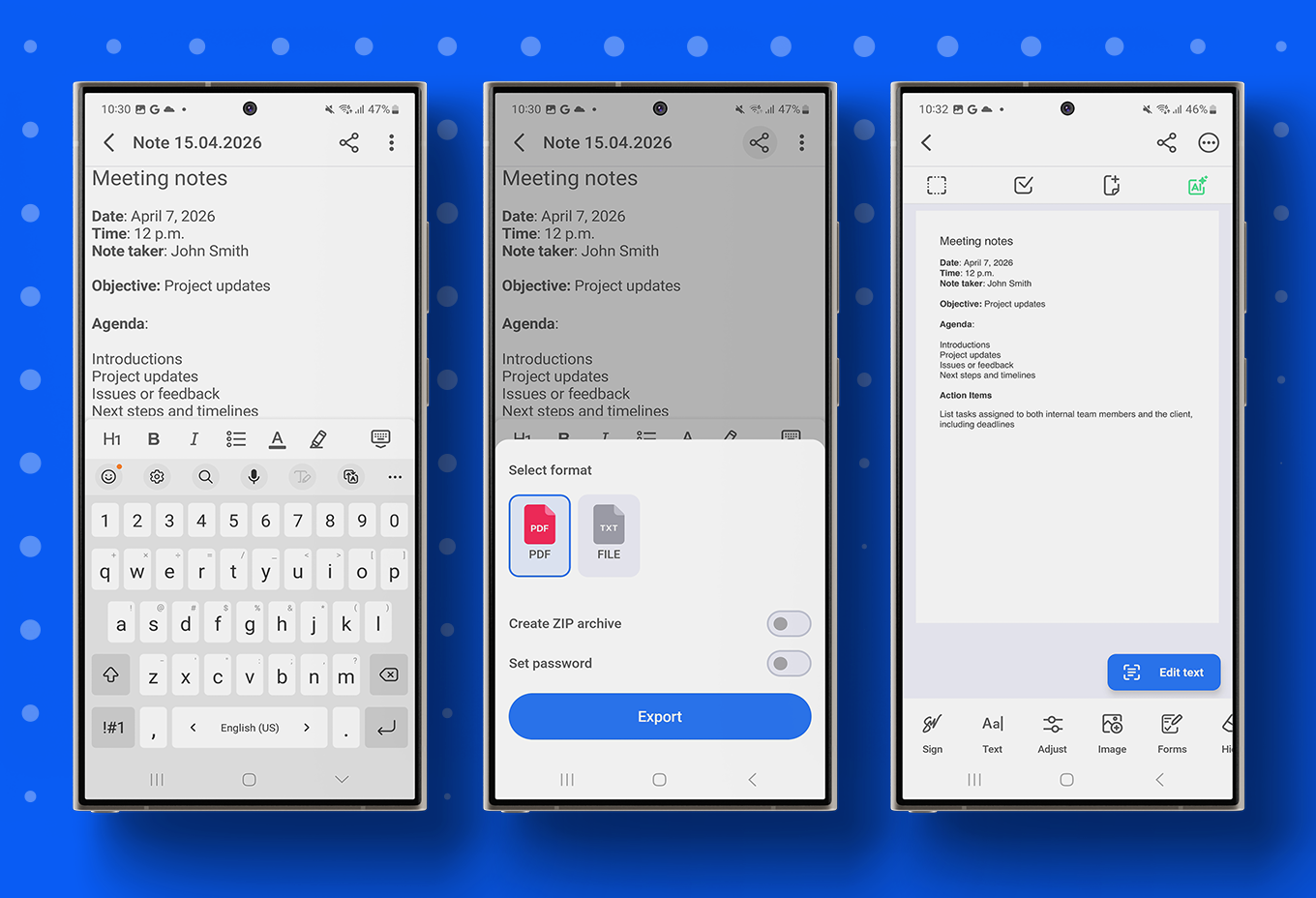
- Open the app (you can download it from the App Store or Google Play if you don’t have it).
- Tap Plus and choose Note.
- Add your notes. For formatting, you can add headers, make text bold or italic, create bullet lists, and change the text or background color.
If you need to export to PDF:
- Tap Share, then choose Export. You can also set a password to protect the file by toggling the switch if needed.
- Choose where to save your file. You can send it directly via email or messenger, upload it to the cloud, or save it locally or in the Forma app.
How to Adjust Notes Converted to PDF in Forma
Whatever storage option you choose, you can now open the converted file in Forma and adjust it as needed. You can add or edit text, insert images, hide or blur sensitive information you don’t want the recipient to see, and add watermarks, footers, page numbers, and more.
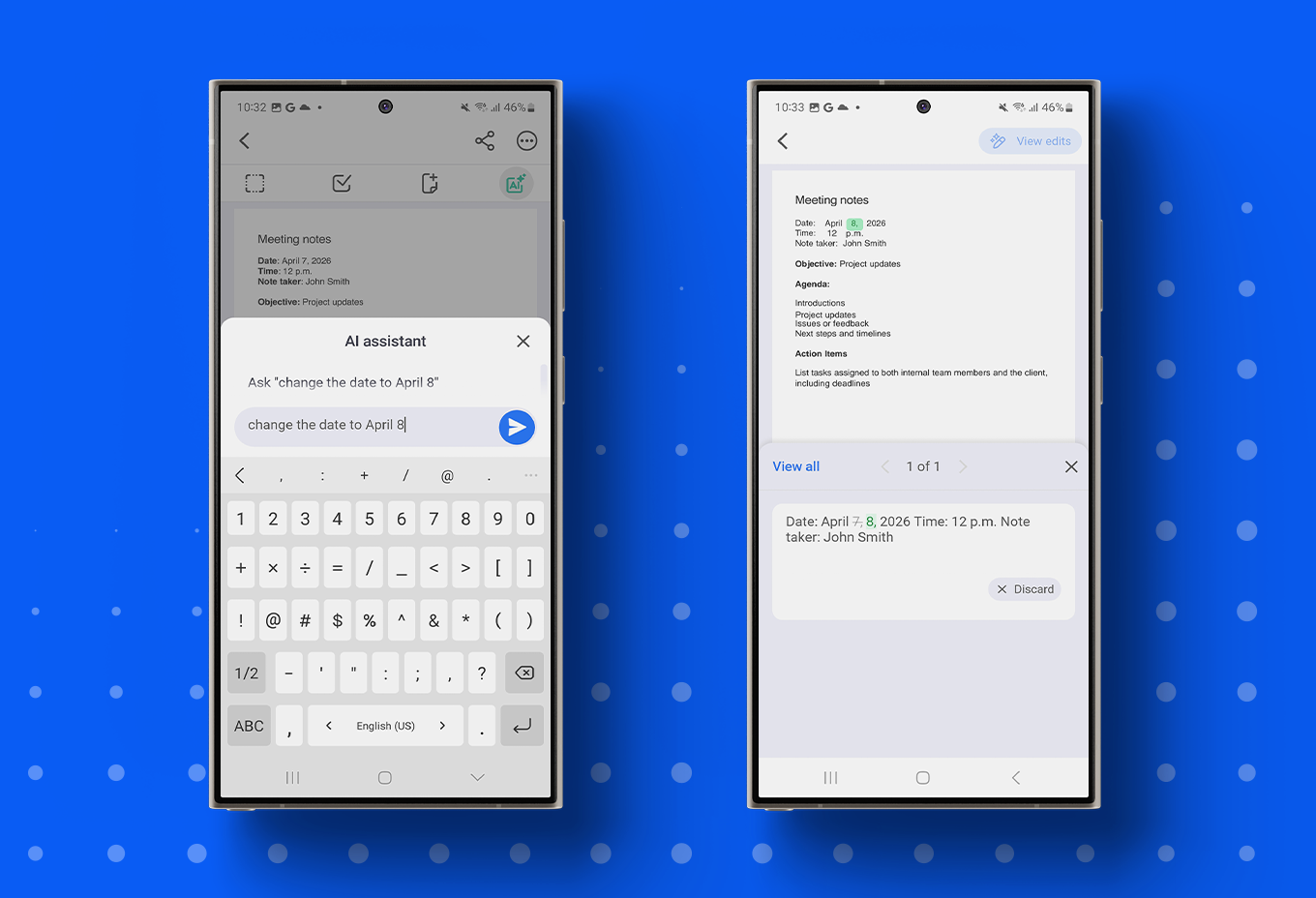
You can also use the AI assistant (via the AI button in the top-right corner) to improve your document. You can proofread it, translate it into 22 languages, improve fluency, summarize the content, identify tasks, or change the tone (neutral, formal, businesslike, friendly, etc.). If none of the options work for you, you can simply type your request manually.
For instance, to change the date in your meeting notes without editing it manually, simply write a prompt like “change the date to April 8.” Forma will update the text automatically and highlight the edited part. Tap Apply if everything looks correct, or discard the change by tapping View edits in the top-right corner and selecting Discard.
Built-in Notes Apps
Apple Notes, Samsung Notes, and Google Keep also allow you to convert your notes to PDF.
To do this on iOS, open your file in Notes, tap Share, select Print, and choose Save to Files.
On Samsung devices, tap the More options menu (the three dots in the top-right corner), select Save as file, and choose PDF.
On other Android phones, open your note in Google Keep, tap the three dots in the bottom-right corner, select Send, then Print, and choose Save as PDF.
4